
When you send a review invitation, you want your customers to quickly recognise that it came from your business.
By setting a custom subdomain, you can now automatically inject your business name directly into your SMS links, Shareable links and email sender address. This helps build immediate trust which can improve open rates, boosts engagement, and ultimately helps you gather more 5-star reviews.
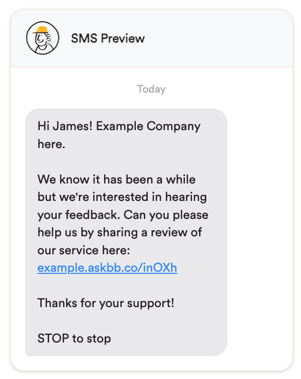
Note: The unsubscribe message shown in this example may appear differently for Australian customers. Learn more about Australian SMS messaging requirements here.
How it works
When you set your custom subdomain (e.g. "example"), it will automatically upgrade your sending details across the platform:
-
Your SMS Links will change to:
https://example.askbb.com/code -
Your Sender Email will change to:
[email protected] - New Shareable Links will show:
https://example.askbb.com/code
The Golden Rules of Subdomains
Before you jump in to set your Subdomain, there are three important rules you keep in mind:
-
Letters, numbers and hyphens only
Your subdomain cannot contain any spaces or special characters, expect for hyphens (apostrophes, or exclamation points). -
Keep it short
To prevent your SMS messages from becoming too long and messy, we highly recommend keeping your custom subdomain as short as possible.-
Too long:
examplelimitedauckland - Perfect:
example
-
- It must be unique
Every subdomain across betterbunch must be one-of-a-kind. If you are part of a franchise or manage multiple store locations, you may need to add your branch name to your subdomain to ensure it is unique (for example:exampleauckland).
Caution: Once you save your custom subdomain, it cannot be changed. If you make a typo, you will be permanently locked into this choice, so be sure to get it right the first time!
How to set your custom subdomain
-
Log in to your betterbunch account.
-
Go to Settings in the bottom-left menu.
-
Open the Business tab.
-
Locate the Subdomain text box.
-
Carefully type in your short, recognisable business name into the Subdomain text box.
-
Double-check your spelling, then click Save.
From now on, your future SMS, Email invitations and new Shareable links will be sent using your branded links and sender address.
Note: Custom subdomains personalise the links used in your SMS invitations, Shareable links, and email sender address. They do not change the SMS Sender ID. SMS invitations sent to Australian mobile numbers will still be delivered from the registered betterbunch Sender ID.
Note: Custom Subdomains are available to most users, but are not included on every plan. If the subdomain text box is not displayed or is locked in your business settings, reach out to our team using the chatbot in the bottom right corner of your screen to chat about unlocking this feature for your account.