Skip to content
  • There are no suggestions because the search field is empty.

Customising invitation style

This article covers everything you need to know about updating your invitation style to best reflect your brand

Personalising your invitation style is a great way to help increase conversion rates. Customers are more inclined to interact with your invitations if the style of the invite matches your business's brand because it feels familiar.


How to customise your default invitation style

Updating your default invitation style will change the style of all future invitations including manual, automated and Shareable invites. 
Read on to learn how to update your default invitation style. 

  1. Login to your betterbunch account
  2. Head to the Settings page on the bottom/left of your dashboard

  3. From there, navigate to the Invitations tab

  4. Click the Select a page to edit dropdown and choose Invitation style
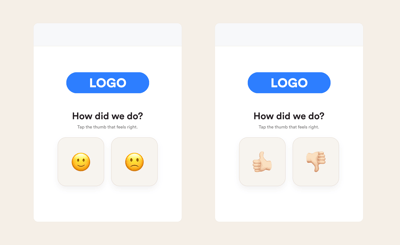
  5. Select a template that best reflects your brand. You can see what the invitation will look like on the display phone on the right side of the screen. We've also linked our new styles below.  
  6. Click Update default invitation style to save your changes. It's that easy!
betterbunch_styles

How to customise the style of a single invitation 

If you are sending a single invitation or uploading a bulk invitation, you can edit the style for the one-off send. This will not alter your default style for future invitations. 
Read on to learn how. 

  1. Begin sending your feedback invitation using the single invitation method or bulk invitation method 
  2. Before hitting send,  select Edit Invitation  

  3. Select Invitation style from the top of the pop-up 
  4. Select a template that best reflects your brand. You can see what the invitation will look like on the display phone on the right side of the screen 
  5. Click Update for this send only to save your changes
  6. If you've had a change of heart and want to update your template for all future invitations, select the dropdown arrow, and click Update for all sends going forward

Tips, tricks and other things to remember when customising your invitation style

Here are a few tips to keep in mind when selecting your invitation style.

  • If your logo is blurry or out of date, that's no problem. Simply follow these instructions to upload a new display logo. 
  • The text that is displayed above your happy and unhappy buttons isn't customisable. 
  • The URL (or link) included in your SMS invitations can be customised by updating your Subdomain setting. Learn how to set your Subdomain here.