
If you use Xero, you can export a list of customers and upload it to betterbunch to create multiple invitations at once.
Exporting your customers list from Xero
To export a list of customers from Xero, follow the steps below.
-
Log in to Xero.
-
Click Contacts from the top menu and select Customers.
- Click Smart Lists from the top menu and open Paid Us (in the last year).
-
Adjust the filters and add any conditions you need to capture the customers you want to invite.
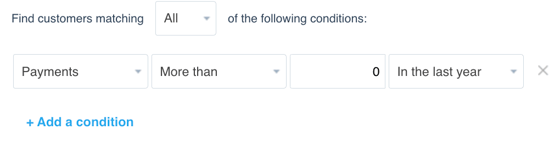
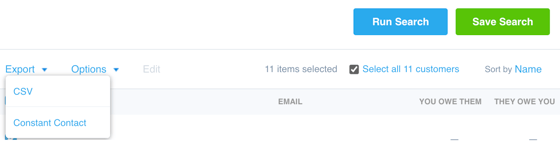
- Click Run Search, then tick Select all X customers.
- Click the Export button on the left of the list, and choose CSV. Save the file to your computer.
Tip: If you're preparing a Past Customer Campaign, we suggest setting your filters to Payments of More than 0 In the last year
Check the list in betterbunch
Xero exports can include extra columns or put a mobile number somewhere unexpected. You can tidy the details as part of the betterbunch upload:
- Go to Create invite > Bulk upload and upload the exported CSV file.
- In Review your customers, use the dropdowns to map the columns for First name, Email and Mobile number. Set unrelated columns to Ignore.
- Click a cell to correct details or move a mobile number into the column you have mapped for mobile numbers. Use the rubbish bin to remove anyone you do not want to invite.
- Click Continue with X customers. You can edit the message and send or schedule your invitations from the next screen.
See How to send invitations to a list of contacts for the full upload walkthrough.